
Guide
Installation and user guide
Everything you need to install TypeVora and use it in InDesign.
About TypeVora
TypeVora keeps your InDesign document in line with your Word and Excel files: it reads the source and shows the changes as color markings in InDesign, without touching your formatting.
- One direction. TypeVora reads your Word or Excel file and never writes anything back to it.
- Text only. TypeVora changes the text in InDesign; your styles, colors, column widths and layout stay as you made them.
- You stay in control. New, changed, moved and deleted text gets a color. A click in the document cleans everything up, and Edit > Undo reverses a whole update in one go.
- Local. TypeVora does not send your files or document content to a server. The file you link is only read.
TypeVora works with InDesign 2026 (version 21) or newer, on Mac and Windows.
Installing
Installing takes a few minutes and works the same way on Mac and Windows. TypeVora is not in the Adobe marketplace; you install it with a .ccx file you receive from TypeVora.
Before you begin
- You need InDesign 2026 (version 21) or newer and the Creative Cloud app.
- Is an older version of TypeVora already on your computer? Remove it first in the Creative Cloud app under Plugins, and restart InDesign.
- Close InDesign while installing.
Steps
- Save the .ccx file, for example in your Downloads folder.
- Double-click the file. The Creative Cloud app opens and asks whether you want to install the plugin.
- Confirm the installation. Adobe shows the window “Install plugin ‘TypeVora’” saying the plugin was developed by a third-party developer. You may need to enter your computer’s administrator password to finish. That is normal, because TypeVora is not in the Adobe marketplace. Only continue if you received the file directly from TypeVora. Adobe then reports that TypeVora is installed; you also see the plugin in the Creative Cloud app under Manage plugins.
- Start InDesign. Open the panel from the menu Plugins > TypeVora (in some versions under Window > Extensions > TypeVora). Drag the panel by its title bar into your panel column, next to Links for example, to dock it. The menu File > TypeVora is there too.
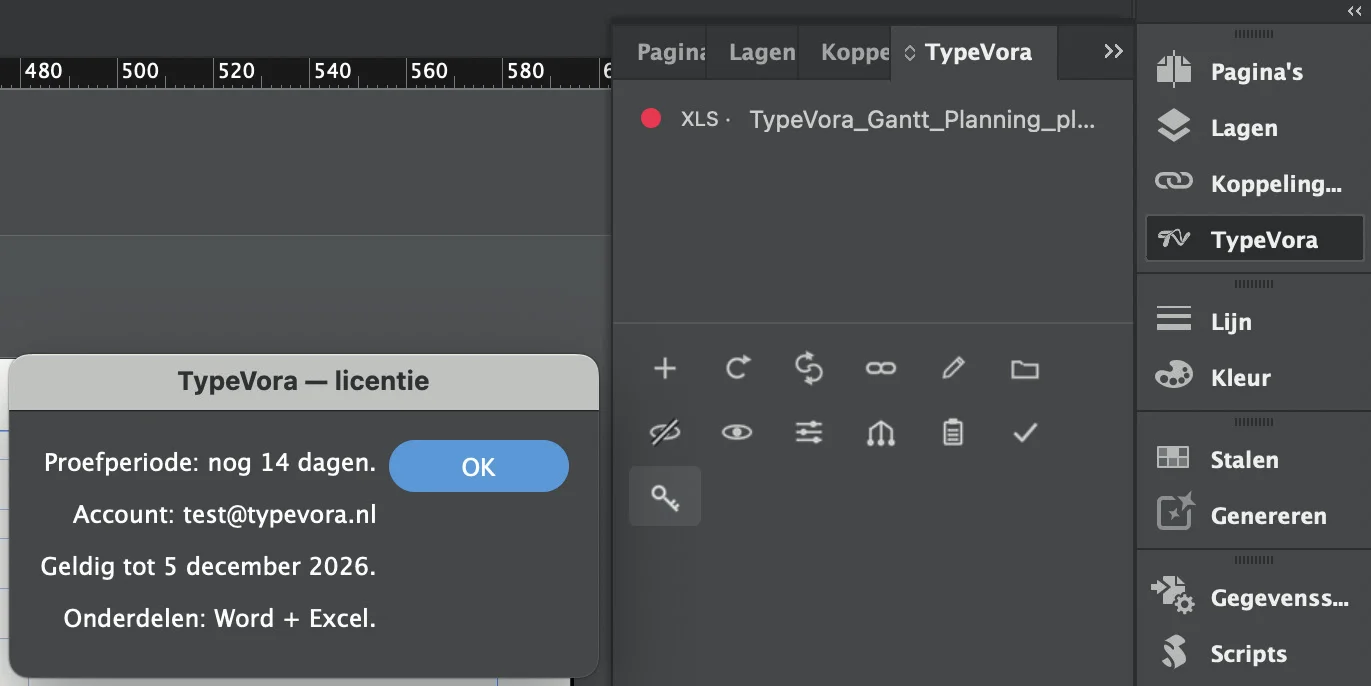
- The first time you open it, a pop-up asks for your email address to start the free 14-day trial.
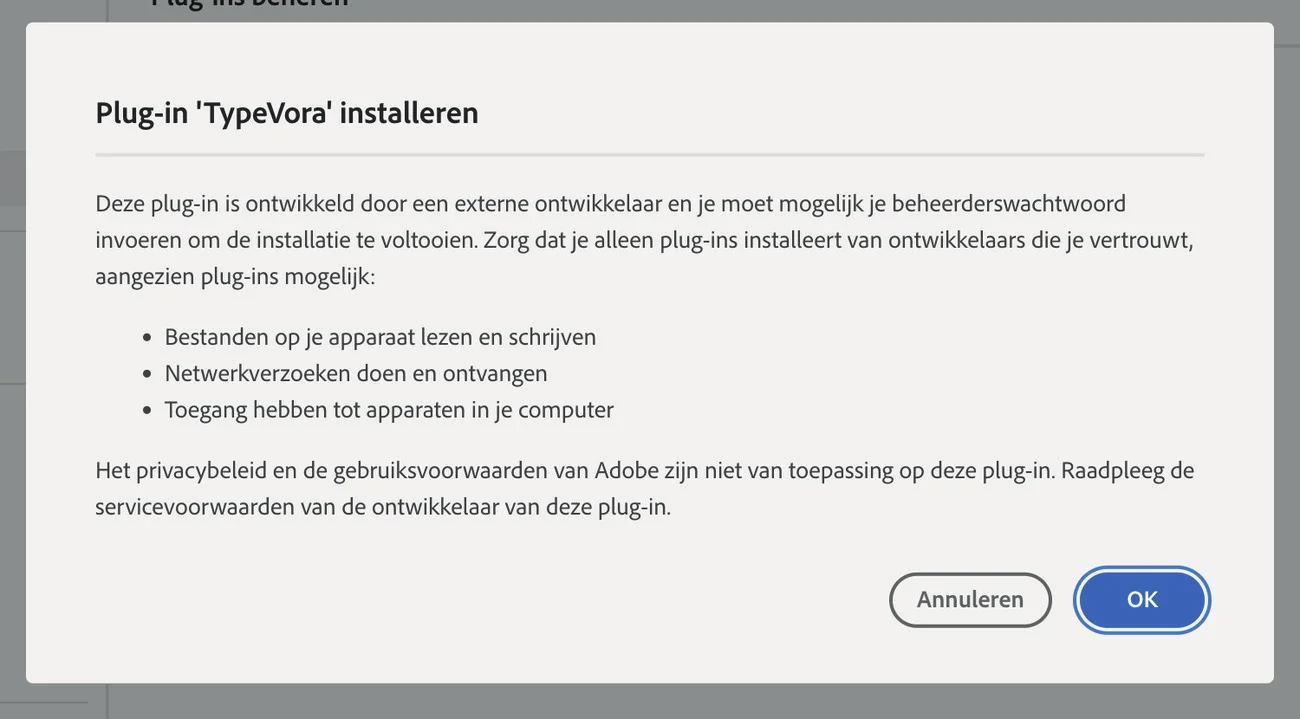
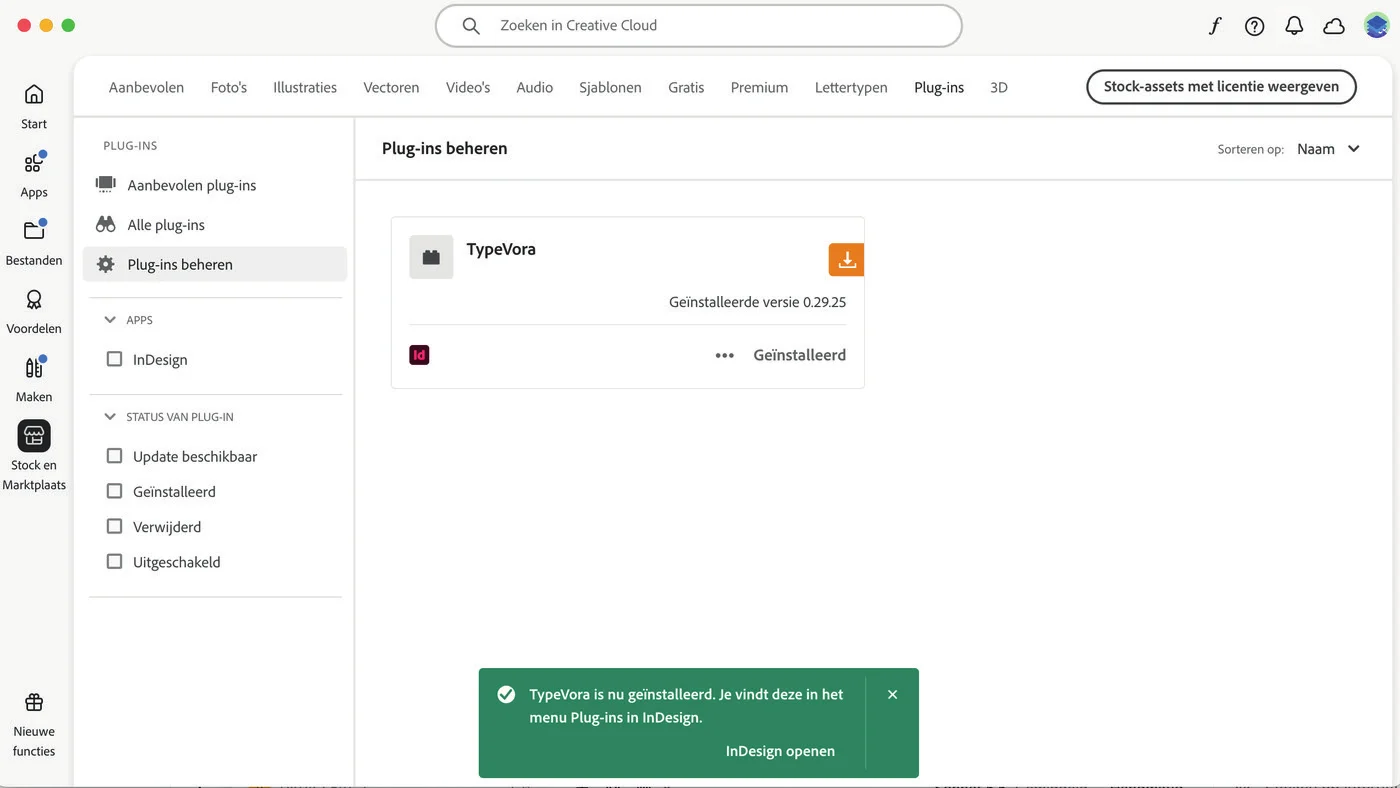
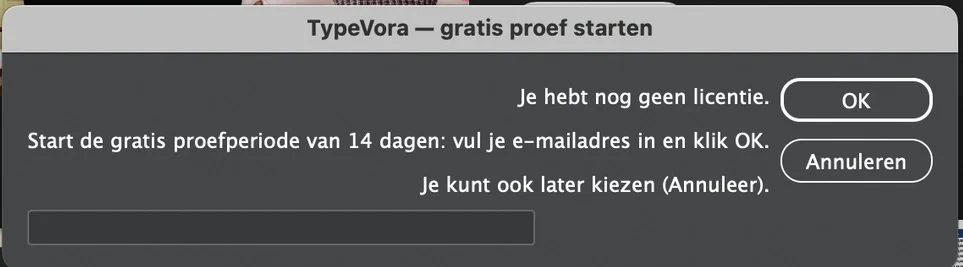
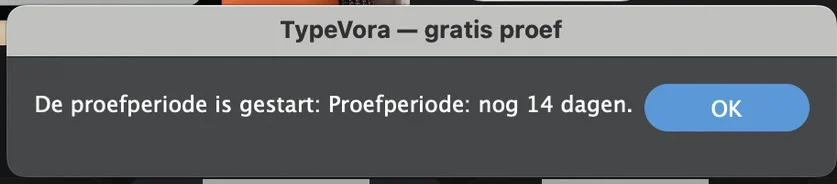
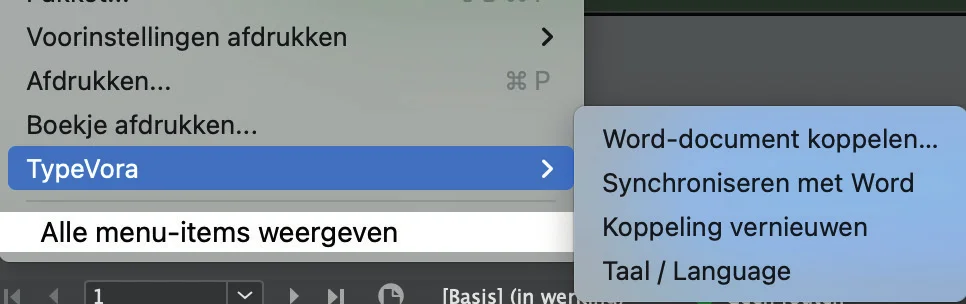
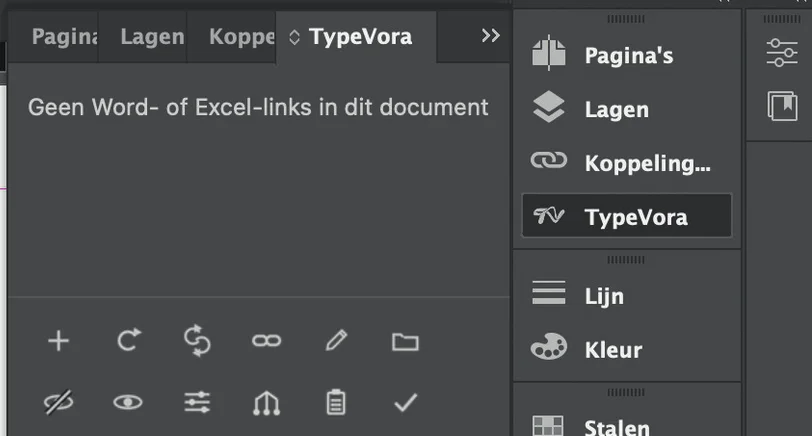
The screenshots in this guide show the Dutch interface. In the plugin, choose English under Language (see “Language” below).
Not working?
- You do not see the panel in your panel column (for example after a reinstall or a new version): choose Plugins > TypeVora and the panel opens again. Drag it into your panel column to dock it again. If TypeVora is nowhere in the menu, quit InDesign completely (on Mac also from the Dock) and start again.
- No installation window appears: open the .ccx file through the Creative Cloud app, or check that the app is up to date.
- Still nothing: send a message to the contact address under Troubleshooting and contact.
Getting started
TypeVora works with links: a Word or Excel file attached to your InDesign document. A document can have several links, and all of them appear in the TypeVora panel.
Linking a Word file
- Make sure the text frame you are placing into can flow onto a next page. Hold Shift while placing for automatic flow, or click the red plus afterwards and place the rest. If the text does not flow, tables and markings cannot be updated later.
- Place the Word file with File > Place.
- The link appears in the TypeVora panel.
- Change something in Word, save, and click Update (per link) or Update all in the panel.
Linking an Excel file
Click the plus icon in the panel and choose your .xlsx file. TypeVora links the sheet that belongs to the table in InDesign. When placing, choose “Formatted table” or “Unformatted table”.
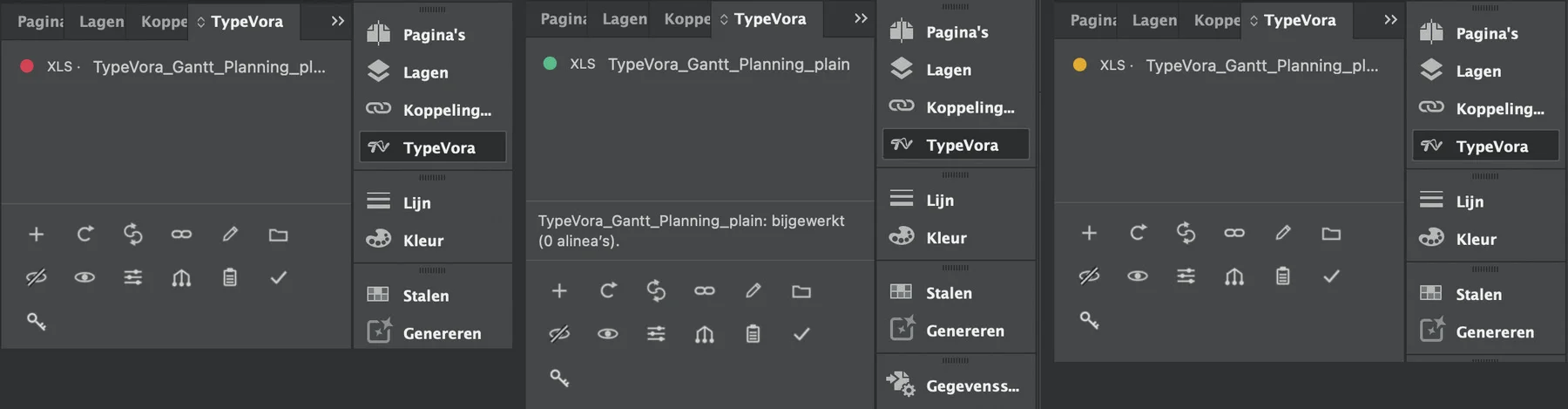
The dots in the panel
| Color | Meaning |
|---|---|
| Green | Up to date: the source file has not changed since the last update |
| Yellow | The source file has changed or has not been updated yet. Click Update; it then turns green |
| Red | Link broken: the file cannot be found or read |
Hold the mouse over a row for an explanation and the time of the last update. While a file is being replaced, or right after InDesign starts, the dot can be red for a moment; that fixes itself. If it stays red, click the Relink icon and choose the file again.
Updating and the colors
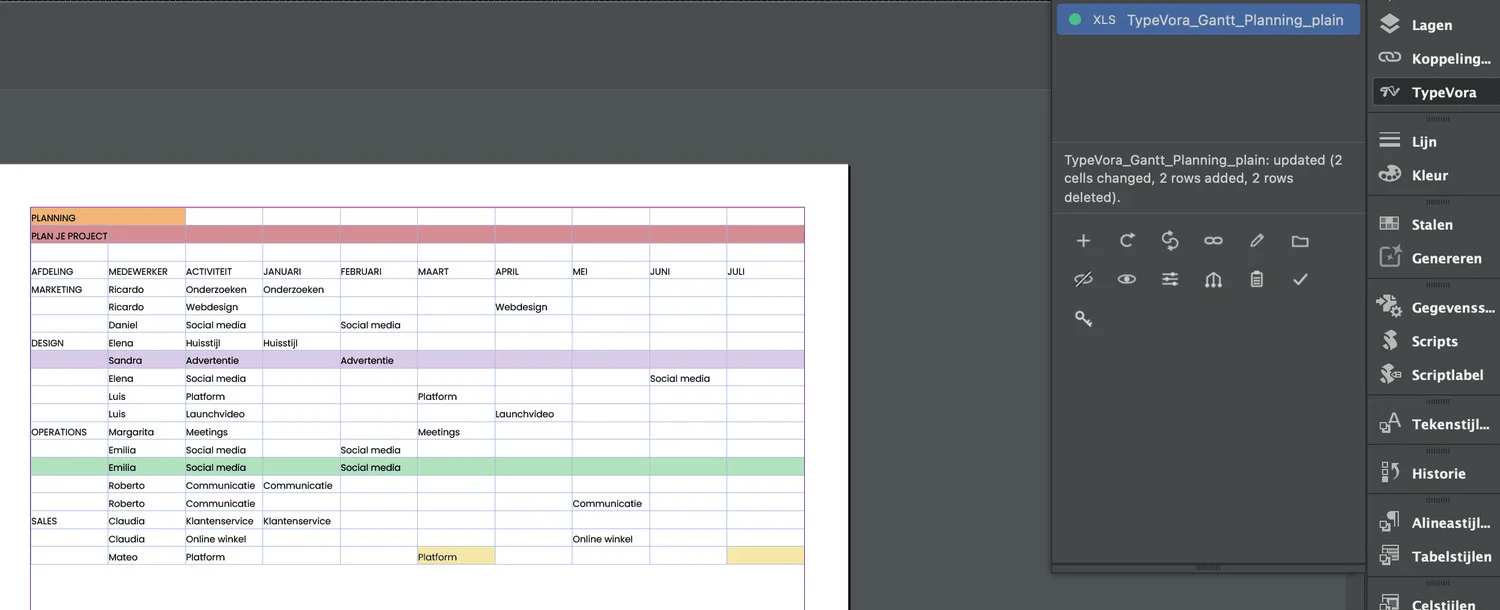
After an update, TypeVora shows what changed, with colors in the text and in table cells.
| Color | Meaning |
|---|---|
| Green | New from Word or Excel: a new paragraph, sentence, table row or column |
| Yellow | Changed: only the changed words or cells |
| Purple | Moved; the old place turns red |
| Red | Deleted in Word or Excel |
| Orange | Kept in InDesign: a paragraph that was deleted in Word, or a sentence or table cell that was changed differently in Word or Excel and in InDesign |
Cleaning up. Click in the document: all colors disappear and the red paragraphs, rows and columns are really deleted. To undo an update, choose Edit > Undo; that reverses the whole update in one step.
Where does new text go? A new paragraph goes in the same place as in Word, before the paragraph that follows it. A new sentence at the end of a paragraph that ends with a footnote number goes before that number.
Orange comes back
Orange means Word and InDesign still differ. TypeVora does not resolve that difference itself. After a click the orange disappears, but with the next update it returns for as long as the difference exists.
Resolving: select the orange paragraph and click the “Resolve orange paragraph” icon in the panel. You then choose “Use the Word text” (the paragraph becomes as in Word, with yellow or green as a check) or “Keep my text” (the paragraph stays as in InDesign). You can also edit the text in Word or InDesign yourself. For an orange table cell you click the same icon: you then choose “Use the source text” (the cell becomes as in Excel or Word) or “Keep my InDesign text” (the cell stays as it is and is no longer orange as long as the source and InDesign do not change again). Your choice applies to all orange cells.
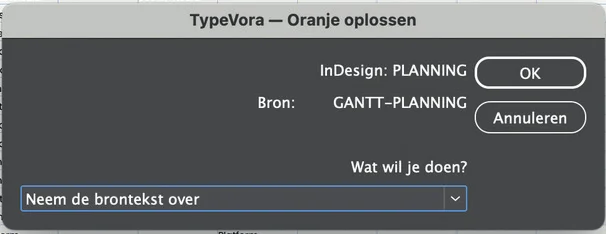
OneDrive. Changes can arrive with a delay because OneDrive is still syncing. Wait until Word has finished saving, then update again.
Excel
TypeVora only changes the text of the cells. Formatting, cell colors and column widths stay as you made them in InDesign, and nothing is ever written back to Excel.
- Colors. Yellow is changed, green a new row or column, red a removed row or column, purple moved, and orange when you and Excel have the same cell different. A click in the document clears all colors.
- Notation does not count as a change. “€ 89,00” versus “89”, or “10 %” versus “10%”, is not marked.
- Rows and columns follow automatically. What you add in Excel appears green and filled in InDesign. What disappears in Excel stays red until you click in the document.
- Columns are matched on content. If the content is too different, TypeVora uses position. If there is no reliable match, the table is left alone and you get a message.
- Merged cells (for example a title across all columns) stay as they are in InDesign.
- Formulas. TypeVora reads the last saved result. If the file was never calculated in Excel, those cells are left alone: open it once in Excel and save it.
- Table does not fit the frame? TypeVora writes the text but does not make the frame larger. You arrange that yourself in the layout.
- Text in colored cells keeps the formatting you chose, even if that is white header text.
- Table far from the last state (fewer than half of the cells still match): the Excel source is the starting point.
Text that does not fit the frame
If a text frame does not flow on, text or a table stays outside the frame; you see a red plus at the bottom right. Regular text is still updated, but TypeVora cannot update a table that does not fit the frame. The panel says so. Let the frame flow onto a next page and click Update again.
More options
Besides text and tables, TypeVora also handles these items in an update:
| Item | What happens |
|---|---|
| Footnotes | The text is updated; only the changed words turn yellow. This happens when Word and InDesign have the same number of footnotes, in the same order. A new footnote is placed in green if the existing footnotes still match exactly. If you change a footnote and add one in the same update, TypeVora reports that nothing was updated: do it in two steps. |
| Text boxes | The text in a Word text box is updated; changed words turn yellow. A text box that cannot be found is reported. |
| Images | If an image changed in Word and you did not change it in InDesign, it is reloaded. If you moved, scaled or replaced it, your version stays and you get a message. |
| Header and footer | By default only a message. If you choose “Write to frames on the parent page”, TypeVora creates two text frames on the parent page that you can move and format. A frame with a page number is not overwritten. |
Import options per link. Select a link and click the sliders icon. For each link you choose whether footnotes, text boxes and changed images are updated, and what happens with header and footer (only report, write to frames, or ignore). Text and tables are always on.
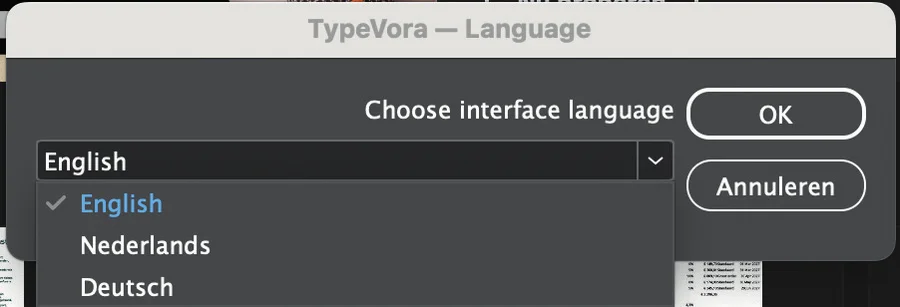
Language. Choose the language in the menu: English, Nederlands or Deutsch. Then reopen the menu and the panel to see the translated texts.
New in Word after the first version
| New in Word | What happens in InDesign |
|---|---|
| Paragraph | Appears in green in the same place. If the Word style already exists in InDesign, the paragraph gets that style; otherwise TypeVora creates a style with the same name. Word formatting is not carried over. |
| Footnote | Appears in green in the right place in the text. |
| Image | Appears in its own paragraph below the paragraph it follows in Word, at the size from Word (never wider than the frame). You adjust the frame afterwards. |
| Table | Appears below the paragraph before it, with the table style and cell style of an existing table and green rows. |
If placing such an item fails, you get a message and the rest of the update simply continues.
License and pilot
License messages appear as regular InDesign pop-ups. When InDesign opens, you only get a message if something needs to happen.
| Situation | What you see |
|---|---|
| No license yet | A pop-up where you enter your email address to start the free 14-day trial |
| At most 7 days left | A warning, at most once a day |
| Expired | A message; updating from Word or Excel is then off and your documents stay as they are |
| Trial already used | “The trial period has already been used.” |
The key icon at the bottom of the panel shows the status at any time. You can start the trial once.
Pilot version. The pilot version is meant for testing and stops on 31 January 2027, even if your trial is still running by then. Around that date you get a message. After that, updating is off and your documents are left alone. A new version follows through TypeVora. The terms are in the pilot agreement.
Troubleshooting and contact
Run into an error? Save your log and share it with us. That helps us improve TypeVora, and usually lets us see quickly what went wrong.
- In the TypeVora panel, click the clipboard icon (a clipboard with lines). TypeVora copies the version, your settings and the last log lines to the clipboard. The panel says: “Diagnostics copied.”
- Open a text editor (Notepad on Windows, TextEdit on Mac) and paste the text (Cmd+V on Mac, Ctrl+V on Windows).
- Save it as a .txt file and send it to info@typevora.com, preferably with a screenshot of what you saw and a short description of what you did.
Tip: do this right after the error occurs, before you continue working. The log only keeps the last lines. Logs can contain folder names and file names; remove what you would rather not share.
Good to know
- Text box over the title. InDesign places a Word text box as a floating frame where it is anchored in Word. Sometimes that lands on top of other text. Move the frame once; after that it stays put.
- Empty boxes at bullets. That is the font, not the text. Choose a font that contains the character.
- Pink highlight after a footnote number. That is InDesign itself (a substitute font for the character), not TypeVora.
- Paragraphs with a field or comment can be merged by InDesign when placing. A click on the page fixes that.
- File open in Word or Excel, or not yet in through OneDrive. TypeVora tries a few times. If that fails, it reports: “Close the file in Word or Excel and click Update again.”
- The temporary file ~$name.docx or ~$name.xlsx. Word and Excel create it while the document is open. When linking, choose the real file without ~$.
Windows
- If the file is open in Word or Excel, Windows locks it. Close the file and update again.
- Files on OneDrive must be downloaded locally (“Always keep on this device”) before you update.
- Use Ctrl instead of Cmd.
Speed with large tables. A table of about 240 rows and 8 columns takes 3 to 5 seconds to update and 2 to 3 seconds to clean up after a click. Reading from InDesign can take 3 to 7 seconds. Small tables take well under 2 seconds. If you update several sheets in a row, click in the document between two updates; that keeps it fast.